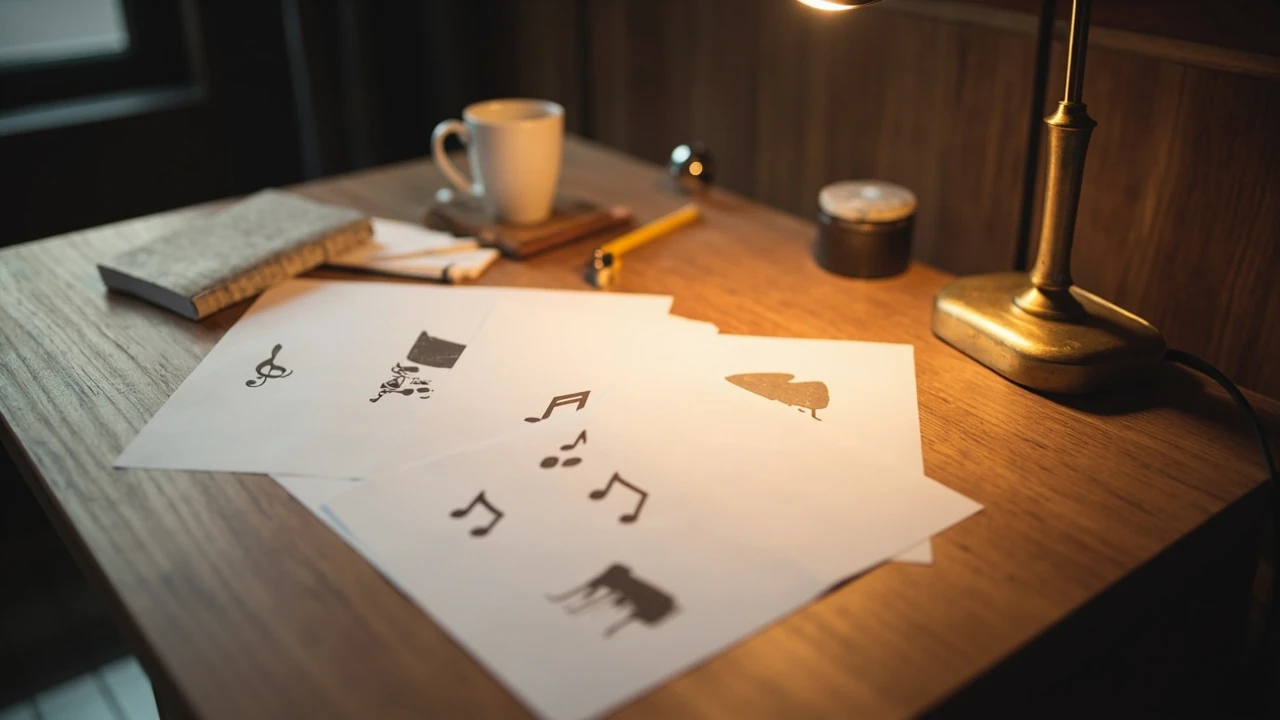
Music clipart: a practical guide to choosing, using, and crediting it
A church bulletin needs a small treble clef next to the choir schedule. A middle-school band director wants a row of instrument silhouettes for a recital flyer. A children’s choir teacher is preparing a worksheet and needs bold, simple notes that print clearly on a black-and-white photocopier. These are the everyday situations where music clipart quietly solves a problem, and they are also where the wrong file can waste an afternoon, look amateurish, or create a copyright headache.
This guide is written for people who need to make those small visual decisions well. It explains what music clipart actually is, how it differs from icons and stock photos, which file formats matter for which job, where to find sources you can trust, and how to read the licensing language so your flyer, slide deck, or printed program stays legal. The focus is practical: the kind of detail a designer or a volunteer with no design training needs to choose confidently.
What counts as music clipart, and what does not
Music clipart is a broad category that covers simple, stylized images used to illustrate music-related material. The word comes from “clip art,” a term that dates back to printed books of ready-made illustrations that editors could literally cut out and paste into a layout. Today the same idea lives as digital files. A piece of music clipart might be a single treble clef, a line of eighth notes, a cartoon grand piano, a drum kit silhouette, or a small group of instruments arranged in a frame.
The line between clipart, icons, and stock photography is not always drawn carefully online, but the differences are worth knowing:
- Clipart tends to be illustrative, often with a clear outline and limited detail. It is meant to be placed inside a layout, not used as a full background.
- Icons are usually smaller, simpler, and designed for user interfaces. They are optimized to read well at 16, 24, or 32 pixels and often have a single color or a flat design language.
- Stock photography shows real subjects, often a person playing an instrument or a concert scene. The file is a photograph, not an illustration.
- Vector art is a technical category, not a subject category. Vector files describe shapes with math, so they can be scaled to any size without becoming blurry. Many music clipart collections are vector, which is one of the main reasons designers like them.
For most bulletin, flyer, and worksheet jobs, music clipart is the right tool. Stock photos work better when you need to show a real person performing, and icons work better when you need a tiny, repeatable mark for a website or app.
Common types of music clipart you will actually use
Music clipart collections vary a lot, but the same handful of subjects appear over and over. Knowing what is standard helps you search faster and avoid paying for images you could have found in a free library.
- Notation symbols: treble clefs, bass clefs, sharps, flats, whole notes, quarter notes, eighth notes, rests, and bar lines. These are the most reusable elements for church bulletins, choir programs, and theory worksheets.
- Instruments: grand pianos, upright pianos, acoustic and electric guitars, violins, cellos, trumpets, trombones, saxophones, drums, tambourines, harps, and pipe organ silhouettes. Instrument clipart is often grouped into ensembles for recital flyers.
- People and characters: cartoon musicians, conductors with batons, children singing, bands on stage, orchestra sections. These work well for children’s material and casual flyers but can quickly look dated or generic.
- Decorative dividers and borders: musical staff lines turned into ornamental dividers, frames built from notes, and corner flourishes for programs and certificates.
- Symbols and objects: microphones, headphones, sheet music pages, metronomes, music stands, vinyl records, and stage lights. These often fit social media graphics and lesson cover pages.
For organ-related material specifically, pipe organ clipart is a small but useful subcategory. The internal link below to organ stops explained covers the actual instruments in more depth if you are trying to label a stop list with the right visual.
File formats that actually matter
Most users only need to recognize three or four formats, but each behaves differently. The table below summarizes the practical difference.
| Format | Best for | Scales cleanly | Typical clipart use |
|---|---|---|---|
| SVG | Web, large prints, laser cutting, signage | Yes, any size | Vector clipart for logos, large posters, and crisp screen display |
| EPS / AI | Print design, professional layout software | Yes, any size | Stock vector libraries and design templates |
| PNG | Documents, slides, web with transparency | No, pixel-based | Quick placement over colored backgrounds because transparency is built in |
| JPG | Photographs, full-bleed backgrounds | No, pixel-based | Less useful as clipart because backgrounds are baked in |
| GIF | Simple web graphics, very small icons | No | Historical format, still seen in older free libraries |
| Sharing and printing vector pages | Yes, any size | Sometimes used to package sheet music or instrument diagrams |
The two formats to remember are SVG (or EPS) and PNG. If you can scale the image without it turning fuzzy when you enlarge it, it is a vector format. If you cannot, it is a raster format and you should pick the largest file you can find, then size it down, not up.
How to choose music clipart for a specific job
The same image can look professional in one place and clumsy in another. A few small checks go a long way toward making the right choice the first time.
Match the style to the audience
A children’s choir worksheet can carry bright, friendly cartoon musicians. A printed church bulletin for a solemn service usually needs cleaner, more restrained imagery. A corporate event program for a tech company can lean modern and minimal, often a single line of staff notation as a divider. Before downloading anything, look at three or four examples from the same collection to confirm the style is consistent. Mismatched clipart is one of the fastest ways to make a document look homemade.
Check the line weight and contrast
Heavy outlines survive reduction and photocopying. Thin, detailed linework disappears when printed at a small size or copied in black and white. For a worksheet that will be photocopied, choose clipart with clear, slightly thick lines and minimal interior detail. For a full-color poster, you have more flexibility with fine detail.
Plan for the background
PNGs with transparent backgrounds are the most flexible because they drop onto any color without leaving a white box. JPGs carry a background and usually need extra editing. If your layout has a dark or textured background, transparent PNGs and SVG files are almost always the right pick.
Mind the resolution
For a 8.5 by 11 inch program printed at 300 dpi, you want at least 2550 by 3300 pixels for a full-page image. For web use, 1500 to 2000 pixels on the long edge is plenty for full-width images. If you are working with a small icon-sized piece of clipart, 300 to 600 pixels is often enough because the image will not be enlarged.
Where to find music clipart, and what to watch for
Free and paid sources both have their place. The difference is mostly about time, selection, and licensing clarity.
| Source type | Examples | Cost | Strengths | Common limitations |
|---|---|---|---|---|
| Public domain libraries | Wikimedia Commons, public-domain vector archives | Free | No licensing fee, often high quality, attribution rules are usually clear | Selection can be uneven; you may need to dig |
| Free clipart sites | Openclipart, OpenMoji, similar community sites | Free | Wide variety, easy download | Quality varies; some assets are dated or amateurish |
| Stock vector marketplaces | Freepik, Vecteezy, Adobe Stock | Free with attribution or paid subscription | Large, professionally drawn libraries | Free tiers usually require credit and have download limits |
| Icon libraries | The Noun Project, Iconify, Flaticon | Free with attribution or paid | Clean, consistent style | Best for small icons, not large illustrations |
| Sheet music publishers | IMSLP and similar archives | Free or paid | Authentic notation imagery | Not strictly clipart; usage rules are about the score, not the art |
| Custom illustration | Hire an illustrator | Paid | Unique style, exact fit | Cost and turnaround |
For most volunteers and small organizations, free libraries are enough. For a coordinated set of flyers or a published booklet, paid vector libraries save hours because the style matches across the set. The single most common mistake is grabbing an image from a search engine without checking the license. A general web image is not automatically free to use, and a music score or a sheet of paper photographed by a stranger is almost always copyrighted.
Reading a clipart license without getting lost
Licensing is where most people stall, and it is the part that protects you. A few patterns cover the vast majority of clipart you will encounter.
- Public domain (PD0 or CC0):strong> You can use the image for any purpose, including commercial work, with no attribution required. This is the simplest case.
- Creative Commons Attribution (CC BY): You can use and adapt the image, including commercially, as long as you credit the creator in a reasonable way.
- Creative Commons ShareAlike (CC BY-SA): Same as CC BY, but you must release your own derivative work under the same license.
- Royalty-free commercial license: You pay once or subscribe, then use the image according to the site’s terms. Read the fine print for limits on redistribution or resale.
- Editorial use only: You can use the image in news, commentary, or educational material, but not in advertising or commercial promotions.
- Personal use only: You can use the image in a personal project, not in anything you sell or distribute publicly.
If a license is unclear or missing, do not use the image. Searching five more minutes for a clearly licensed alternative is almost always faster than dealing with a takedown notice later. For more on the general idea of free cultural works, the Creative Commons license entry on Wikipedia is a reliable starting point.
A short workflow for a typical bulletin or flyer
The order below works for most one-off jobs, from a Sunday service program to a school concert poster.
- Sketch the layout on paper or in a simple text box, including the title, dates, and any text blocks.
- Decide which areas need imagery: a header, a corner accent, a divider, or a feature illustration.
- Make a short list of the exact subjects you need, for example “treble clef, grand piano, two eighth notes.”
- Search a trusted source for each subject in vector format if possible.
- Download the highest resolution version available and keep a record of the source and license.
- Drop the files into your layout, size them to fit, and adjust color to match the rest of the design.
- Resize once at the end. Resizing a low-resolution image several times in a row is what causes blurriness.
- Export or print a test page to confirm the clipart looks correct on the actual medium, especially for photocopying.
For organ-specific projects, a related resource is the guide to organ registration, which explains how organ builders combine stops to shape tone. If you are illustrating a registration chart or a stop list, a small organ silhouette paired with a list of stops can be a more useful graphic than a generic instrument cluster.
Common mistakes and how to avoid them
The same errors show up in almost every amateur document. Avoiding them is mostly a matter of checking before you commit.
- Mixed styles: A cartoon trumpet next to a photorealistic piano reads as inconsistent. Pick one visual style for the whole document.
- Stretched or squashed proportions: Always hold the shift key (or the equivalent) when resizing so the height-to-width ratio stays correct.
- Wrong background color: A PNG with a baked-in white background will show that rectangle on a colored page. Use a transparent PNG or an SVG.
- Low resolution on big prints: A 500-pixel-wide image blown up to fill a 24-inch poster will look fuzzy. Source a vector file or a very large raster file instead.
- Missing attribution: If the license requires credit, add it in small text on the same page or in a credits block. “Image by Author, via Source” is usually enough.
- Using sheet music as decoration: A page of copyrighted sheet music is not free clipart, even if you only want it as a background. Look for explicitly public-domain scores or a clearly licensed stock alternative.
Color, line, and composition basics
Even simple clipart looks more intentional when its color and line match the rest of the document. A few practical rules help:
- Pull one or two accent colors from your main text or logo and reuse them in the clipart instead of using the original red, blue, and green you downloaded.
- Keep outline weight consistent across a document. If one image has hairline lines and another has thick lines, the document will feel busy.
- Leave breathing room. A treble clef placed too close to a title looks cramped, while the same image with a half-inch of clear space around it looks deliberate.
- Align clipart to a grid or to a text baseline when possible. A slightly off-center image is one of the small things that makes a document feel homemade.
For digital documents, a single accent color is often enough. For print, remember that bright RGB colors on a screen look duller on uncoated paper, so test before you commit to a full print run.
Accessibility and inclusive design
Good clipart choices also help people who use screen readers, magnifiers, or high-contrast modes. In WordPress and most modern design tools, every image needs an alt text field. That text describes the image for someone who cannot see it, and it is also what search engines read. A specific description is better than a generic one. “Treble clef and a row of eighth notes” is more useful than “music image.”
Color contrast matters too. A pastel yellow treble clef on a white background is hard to see for people with low vision. For headings and key icons, aim for at least a 4.5:1 contrast ratio between the image and the background. Decorative clipart that adds no information can be marked as decorative in most accessibility tools, which tells assistive technology to skip it.
Music clipart for specific use cases
Different jobs call for different looks. The notes below cover the cases readers ask about most often.
Church bulletins and service programs
Restrained, traditional clipart works best. A single treble clef, a small organ silhouette, or a musical staff divider near the top of the page is usually enough. Avoid clipart with cartoon characters in a formal service context, and check with the worship committee if you are unsure about style.
Children’s choir and band worksheets
Friendly, clear, high-contrast clipart is ideal. Stick to PNG or thick-line vector art so it copies well, and use multiple small images rather than one busy one. Repetition helps young readers, and consistent style helps them learn.
Concert and recital posters
One strong central image is better than many small ones. A large instrument silhouette or a stylized musical staff used as a graphic element can anchor the design. Match the color to the program or ticket so the series feels coordinated.
Slides and social media
Vector clipart is easy to recolor in tools like Canva or Figma, which is useful for keeping a feed visually consistent. Avoid heavy outlines on small social media icons, because they can look muddy at display sizes.
Sheet music and theory materials
Notation symbols need to be technically correct. A wobbly treble clef will undermine a theory lesson. Public-domain notation sets exist for exactly this reason. For historical and educational context, the musical notation article on Wikipedia is a good reference for what the symbols are supposed to look like.
Keeping a small library for repeat use
If you produce bulletins, posters, or social posts regularly, a tidy personal library saves time. Create a folder per project, and inside that folder, subfolders for “vector,” “raster,” and “fonts.” When you download a piece of clipart, save the original file plus a small text file with the source URL, the license type, and the date you downloaded it. Six months later, when you want to reuse the same image, you will know whether you can.
A simple naming convention helps too. Something like 2026-11-19_trebleclef_source_CC-BY_smith.svg tells you almost everything you need to know at a glance. This is the same idea behind good file management in any creative field, and it is especially valuable when several people collaborate on the same series of documents.
Frequently asked questions
What is the difference between music clipart and a music icon?
Clipart is usually a more detailed illustration meant for layouts, posters, and worksheets. Icons are simpler, smaller, and designed to read at very small sizes on screens. Both can be vector, but icons are usually drawn in a single style across a whole set, while clipart varies more from one image to the next.
Can I use music clipart I find through Google Images?
Not without checking the license. A general web search returns a mix of public domain, freely licensed, and copyrighted images. Click through to the source, look for an explicit license statement, and if you cannot find one, choose a different image from a clearly licensed library.
What file format should I download?
SVG or EPS if you can. These are vector formats that scale without losing quality and are easy to recolor. PNG with a transparent background is the next best choice for documents and slides. Avoid JPG for clipart, because JPGs do not support transparency and the compression can soften outlines.
Do I have to credit the artist if the image is free?
Only if the license says so. Public domain and CC0 images do not require attribution. Creative Commons Attribution and many “free for use with credit” libraries do require it. When in doubt, add a small credit line. It costs you almost nothing and avoids a misunderstanding.
How large should a clipart file be for printing?
For a full-page image at 300 dpi, aim for at least 2550 by 3300 pixels. For a small icon-sized element, 300 to 600 pixels is enough because you will not enlarge it. When possible, source a vector file and avoid the resolution question entirely.
Is it okay to recolor clipart I downloaded?
Usually yes. Recoloring is treated as a minor edit and is permitted under most standard licenses, including the common royalty-free commercial licenses. If the license says “no derivatives” (ND), then you cannot modify it and would need to find a different image.
Can I use a piece of sheet music as background art?
Not unless the score is explicitly in the public domain or you have permission. Most printed sheet music is copyrighted, even when it looks old. Public-domain scores are available through archives like IMSLP, and those are a safer source for decorative notation.
What is the safest free source for music clipart?
Public-domain collections and clearly licensed Creative Commons libraries are the safest. Wikimedia Commons, Openclipart, and similar archives are good starting points. For paid work, a subscription to a major stock vector site is usually the simplest path because the licensing is uniform.
How do I add music clipart to a WordPress post?
Upload the file through the media library, give it a clear alt text, and insert it into the post. Use SVG only if your theme and hosting allow it; otherwise, use PNG. Keep the original vector file in your records in case you need it for print later.
What size should the featured image be for a blog post?
Most modern themes use a 16:9 ratio. A 1200 by 675 pixel image is a safe default that looks sharp on both desktop and mobile. Vector originals are best because you can export a 1200 by 675 PNG from them at any time.
Before you download the next piece of music clipart, take two minutes to confirm the file type, the resolution, and the license. Those three checks are the difference between a polished bulletin and one that needs to be redone the night before the service.